
01
At your computer
Read incoming notifications in Telegram while you work or study.
 NURELLIS NOTIFY / ANDROID
Choose what matters on Android.
Receive it in Telegram on any device.
Android APK · Internet and license activation required
Your Android stays home. What matters comes with you.
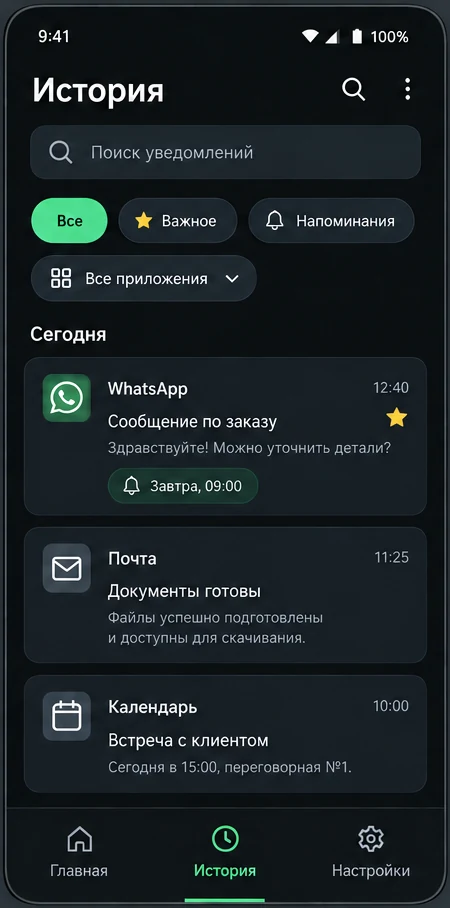
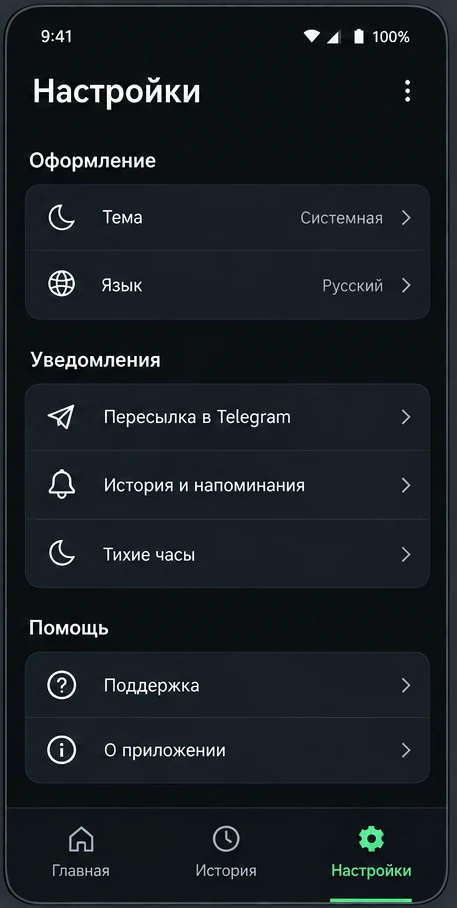
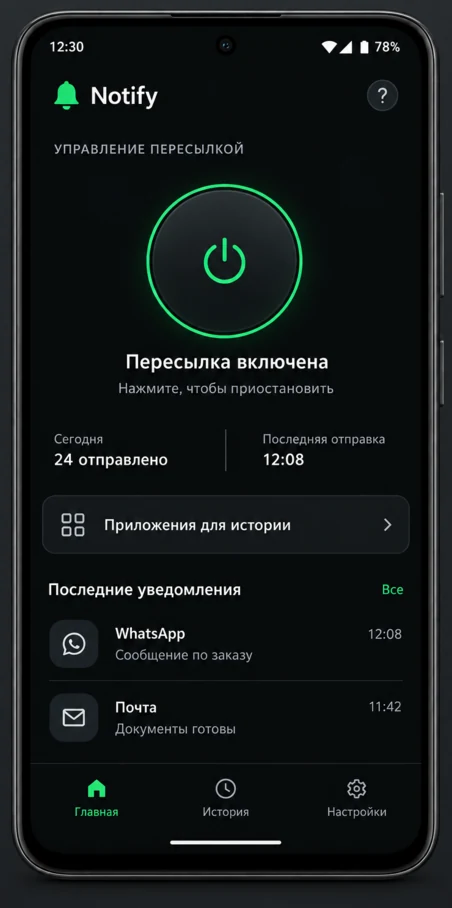
Notify helps you see the messages you care about when your Android phone is not in your hand.
Read incoming notifications in Telegram while you work or study.
Keep Android powered on and online, then read notifications on another device.
A second smartphone is optional. Telegram Desktop or Web on your computer is enough.
A simple route after the initial setup.
Set up Notify for your everyday needs.
Decide which apps are allowed to forward notifications.
Receive SMS together with notifications from selected apps.
Limit forwarding by time to fit your routine.
Open a support request and chat with the administrator in the app.
After setup, Notify is designed to forward notifications in the background.
Read forwarded messages on any device where your Telegram account is available.
To forward messages, Notify needs Android notification access. Content from selected notifications is sent to the Telegram chat you connect.
Android notification-access permission is required.
The source Android must stay powered on and connected to the internet.
You enter your own Telegram Bot Token and Chat ID.
Follow these steps on the Android phone that will forward notifications.
Open this site on Android and download the APK. Open the downloaded file. If Android asks to allow installation from this source, check that you used the Nurellis download link and follow your device’s instructions.
Follow the information on the app’s first screen to activate a license or request access. If you need help getting started, open support below.
Enter your Bot Token and the recipient’s Chat ID in Notify settings. Keep the token private. If you do not have these details yet, ask support for help connecting Telegram.
Enable the apps you need and grant the requested notification access. System setting names may differ between phones.
Use the connection check in Notify. Then receive a new notification from a selected app and check that it appears in the correct Telegram chat.
Make sure you are installing on Android. Save the error text or a screenshot and contact support. Do not disable device protection entirely.
Check license activation. Downloading the APK does not activate the trial.
Check the source Android phone’s internet connection, selected apps, permissions and Telegram details. Run the connection check in Notify. If the error persists, share its text with support without your Bot Token.
The trial also requires license activation.
Explore Notify before paying.
How to activateAccess for one month.
How to activateOne-time payment for lifetime access.
How to activateThe app itself is installed on Android. Forwarded notifications can be read in Telegram on iPhone, a computer, or another device.
License activation is required first. Notify shows contact instructions at first launch. A 15-day trial is available.
Yes. The Android phone forwarding notifications must stay powered on and connected to the internet.
Selected notifications are sent to the Telegram chat you connect. Notify needs Android notification-access permission for this function.
After activation, you can open a support request and continue the conversation with the administrator inside Notify.
Download the APK, activate the trial, and see whether this way of receiving notifications fits your workflow.
APK · Android
Find us on social media
Official NURELLIS pages. Follow news, updates, and projects.